Just My Socks Complete Beginner's Configuration Guide: A Detailed Tutorial from Registration to Usage
Welcome to this beginner's configuration guide for Just My Socks. This article will walk you through—in comprehensive detail—the entire process of getting started with the Just My Socks service from scratch, covering everything from account registration and plan selection to client configuration.
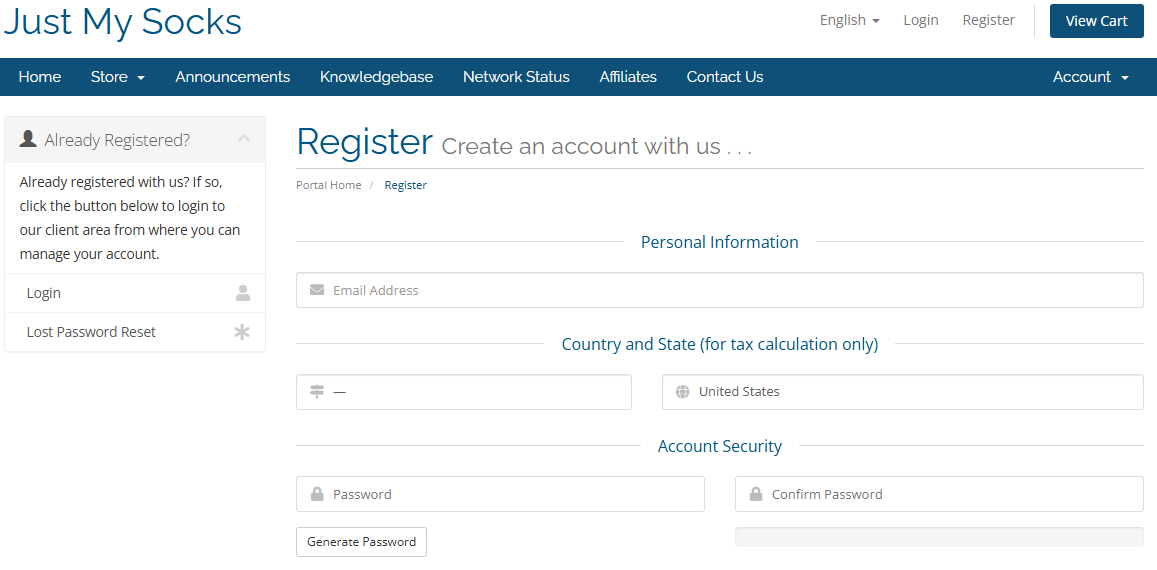
Click the "Register" button in the top right corner.
Fill in your registration details (we recommend using an email address you check regularly, and ensuring that the information provided is accurate and valid).
Complete the email verification process.
II. Choosing the Right Just My Socks Plan
Just My Socks offers a variety of plan options; the following are the most popular choices:
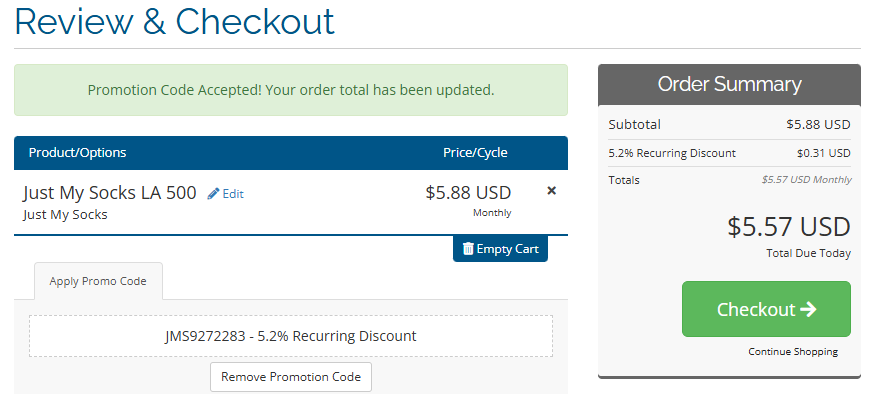
Once your payment is complete, the system will automatically send the service details to your registered email address.
IV. Retrieving Connection Information
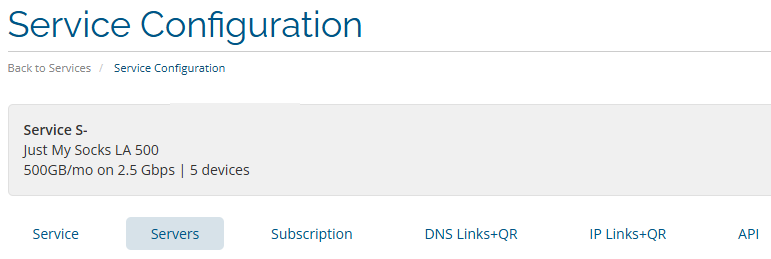
After logging into the Just My Socks control panel:
Click "Services"
Select "My Services"
Locate the service you purchased
View the detailed connection information
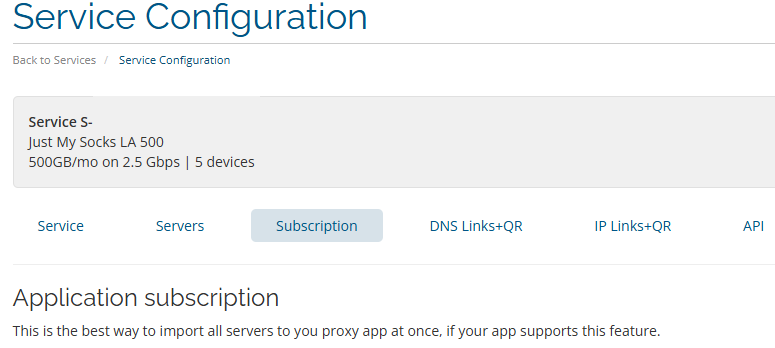
Just My Socks supports the use of subscriptions to automate configuration setup. Simply add the subscription link to your proxy software, and the configuration will be added automatically—this is the simplest and most convenient method.
V. Client Configuration Tutorial
Windows System Configuration
Windows users may choose one of the following three client software options for configuration:
Option 1: Jamjams (Recommended)
Features: Supports both V2Ray and Shadowsocks protocols.
Paste your Just My Socks subscription link into the "Address (URL)" field.
Click "OK" to save the settings.
Once the setup is complete:
Click "Subscription" -> "Update Subscription"
The system will automatically add all configurations.
Enable System Proxy:
Right-click the tray icon.
Select "System Proxy" -> "Auto Configure System Proxy".
After performing this action, the icon in the bottom-right corner will change to the red-background, white "V" icon, indicating that the proxy is active.
Friendly Reminder: Using the subscription link method will automatically configure all Shadowsocks and V2Ray nodes simultaneously.
Method 1 for Importing Configuration: Use a Subscription Link (Recommended)
Copy the subscription link from the Just My Socks control panel.
Add the subscription URL within the client application.
Update the subscription to retrieve information for all available nodes.
Method 2 for Importing Configuration: Scan a QR Code or Manually Enter Configuration Details.
VI. Usage Tips and Important Notes
Periodically check your data usage.
Learn how to switch between different nodes.
Safeguard your Just My Socks login credentials.
Contact customer support promptly if you encounter any issues.
VII. Frequently Asked Questions (FAQ)
Q: Does Just My Socks support simultaneous use on multiple devices?
A: Yes; the specific number of devices supported depends on the service plan you have purchased.
Q: How do I renew my Just My Socks service?
A: Simply log in to the control panel and select the service you wish to renew.
VIII. Summary
Through this tutorial, you should now have a comprehensive understanding of how to use Just My Socks. If you encounter any issues during use, please feel free to refer back to this tutorial or contact customer support for assistance.
Remember: a seamless online experience begins with the proper configuration of Just My Socks. We hope this tutorial helps you make the most of the service!