Just My Socks + Surge: A Detailed Setup Guide — 2026 Latest Tutorial
Want to learn how to configure Just My Socks with Surge? This article provides the latest Just My Socks + Surge configuration tutorial, featuring detailed setup steps, recommended plans, and answers to frequently asked questions.
Table of Contents
Introduction
If you are looking for high-performance networking tools, pairing Surge with Just My Socks (JMS) is an ideal choice. This tutorial provides a detailed guide on how to configure and use Just My Socks with Surge, covering specific configuration steps, performance optimization tips, and advice on how to select the most cost-effective JMS plan.
Surge Overview and Compatibility
Surge is a powerful, advanced networking tool designed specifically for iOS and macOS users. The latest version, Surge 5, is currently available for download and installation via the App Store in regions outside of mainland China. It is perfectly compatible with Just My Socks and offers the following advantages:
- Support for multiple protocols (SS, Vmess, etc.)
- Powerful traffic routing rules
- Real-time network monitoring
- Automatic policy switching
- High performance and stability
Purchase Tips
- Surge Pro licenses must be acquired via an in-app purchase within the App Store and support simultaneous use on up to 3 iOS devices.
- The Pro version is priced at $49.99 (a one-time purchase for a lifetime license).
- The free version does not support proxy functionality; unlocking the Pro license is required to access the full suite of features.
Note: In compliance with relevant regulatory policies, Surge has been removed from the App Store in mainland China. If you previously purchased this software from the mainland China store, you may be unable to receive updates or redownload the application. It is recommended that you use an Apple ID registered outside of mainland China to download and install the app from the App Store.
Detailed Configuration Tutorial for JMS on Surge
1. Obtaining Just My Socks Node Information
Before configuring Surge, you must first obtain your Just My Socks node information. As described in the "Obtaining Connection Information" section of the "Complete Beginner's Guide to Just My Socks Configuration," there are two methods for configuration:
Method 1: Using a Subscription Link (Recommended)
This is the simplest method; the steps are as follows:
- Log in to the Just My Socks control panel. On the Service Details page, locate and copy your subscription URL, as shown in the image below.
- Use a subscription URL conversion tool to convert it into a Surge-compatible subscription link (Surge Subscription Link Conversion Tool).
- Import the subscription link into Surge (the detailed import steps are explained below).
Advantages:
- Node information updates automatically, requiring no manual maintenance.
- Surge supports the direct import of Just My Socks subscription links, eliminating the need for conversion.
- The configuration process is simple and suitable for novice users.
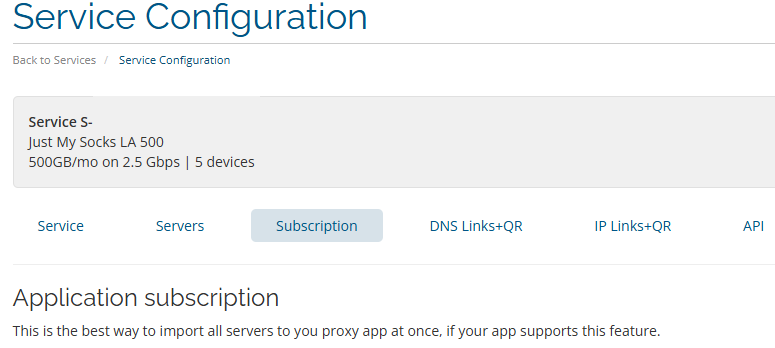
Method 2: Manual Configuration
If you prefer manual control, you may also choose the manual configuration method:
- Locate the server information within the Just My Socks control panel.
- Note down the following details:
- Server Address (Hostname)
- Port Number
- Encryption Method
- Password
- Manually add the node configuration within Surge.
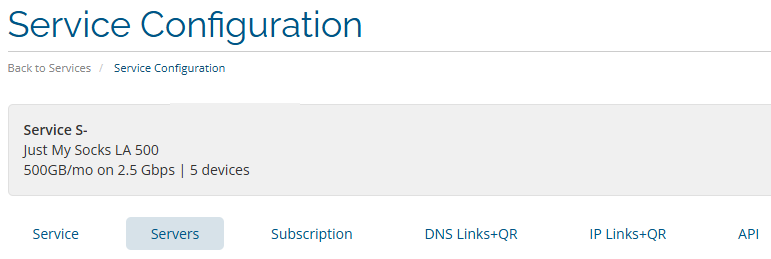
Note: The manual configuration method requires you to manually update the settings whenever the server information changes; therefore, we recommend that novice users utilize the subscription link method.
2. JustMySocks Surge Configuration (Using Subscription Links as an Example)
2.1 Converting the Just My Socks Subscription Link
Before you begin configuring Surge, you must first convert the Just My Socks subscription link into a format compatible with Surge. This is necessary because the original subscription link provided by JMS requires conversion to function correctly within the Surge application.
Subscription Conversion Steps:
- Visit the subscription conversion website: sub-web.netlify.app
- Paste your Just My Socks subscription link into the input field.
- Select "Surge" from the [Client] dropdown menu.
- Click the [Generate Subscription Link] button.
- Click the "Copy" button located to the right of [Custom Subscription] to retrieve the converted link.
Security Tip: This subscription conversion tool utilizes purely front-end conversion technology; the entire conversion process takes place locally within your browser, so there is no need to be concerned about data security issues.
2.2 Importing the Converted Subscription Link into Surge
Once the configuration is complete, you can import the subscription link into Surge using the following methods:
Configuration Steps for iOS/iPadOS Devices:
- Open the Surge app.
- Tap the Configuration button located in the top-left corner.
- Select "Download Configuration from URL."
- Paste the JMS subscription link that you converted earlier.
- Tap "Download." The image below illustrates the interface after the configuration is complete and the new configuration has been activated.
- Return to the Home screen, select "Rule Mode," and toggle on the "Rewrite" switch.
Suggested Rule Settings:
- Enable "Rule Mode"
- Configure Proxy Rule Groups
- Set Up Automatic Speed Testing
- Configure Rules for Frequently Visited Websites
Recommended Just My Socks Discount Plans
JMS Plans Suitable for Surge Users
| Plan Name | Monthly Data | Bandwidth | Supported Devices | Price |
|---|---|---|---|---|
| LA 500 | 500GB | 2.5Gbps | Up to 5 devices | $5.88/month |
| LA 1000 | 1000GB | 5Gbps | Unlimited | $9.88/month |
🎉 Exclusive Offer: Use promo code JMS9272283 to enjoy a 5.2% discount.
Frequently Asked Questions (FAQ)
Q:
Q: What should I do if Surge cannot connect after configuration?
A: Please check the following points:
- Verify that the subscription URL is correct.
- Check if Surge has been updated to the latest version.
- Try manually switching to a different node.
- Confirm that the proxy mode is set correctly.
Q: How do I set Surge to automatically update nodes?
A: Surge supports automatic subscription updates. Here are the steps:
- Navigate to the Configuration page.
- Locate the "Subscription Update" option.
- Set the automatic update interval (12 hours is recommended).
Q: How can I optimize Surge's performance?
A: The following optimization measures are recommended:
- Enable TCP Fast Open.
- Use Rule Mode instead of Global Mode.
- Select appropriate DNS settings.
- Periodically clear the DNS cache.
Related Resources
Conclusion
Through this tutorial, you should now have a solid grasp of how to use Surge in conjunction with Just My Socks. If you encounter any issues, please feel free to refer to the FAQ section or contact customer support for assistance.
Q: What should I do if Surge cannot connect after configuration?
A: Please check the following points:
- Verify that the subscription URL is correct.
- Check if Surge has been updated to the latest version.
- Try manually switching to a different node.
- Confirm that the proxy mode is set correctly.
Q: How do I set Surge to automatically update nodes?
A: Surge supports automatic subscription updates. Here are the steps:
- Navigate to the Configuration page.
- Locate the "Subscription Update" option.
- Set the automatic update interval (12 hours is recommended).
Q: How can I optimize Surge's performance?
A: The following optimization measures are recommended:
- Enable TCP Fast Open.
- Use Rule Mode instead of Global Mode.
- Select appropriate DNS settings.
- Periodically clear the DNS cache.
Related Resources
Conclusion
Through this tutorial, you should now have a solid grasp of how to use Surge in conjunction with Just My Socks. If you encounter any issues, please feel free to refer to the FAQ section or contact customer support for assistance.